
Writing on your phone is still, somehow, a chore. Between a cramped keyboard, autocorrect that guesses wrong, and the mental load of trying to stay focused while on the move, sending a polished message takes longer than it should.
Voice dictation promised to fix this. But native phone dictation just gives you a raw transcript, full of filler words, false starts, and missing punctuation. Cleaning up your text is just as much work as if you’d typed it manually.
That’s what speech-to-text in the Grammarly Keyboard is built to solve. The Grammarly’ Keyboard now lets you dictate directly into any app and delivers clean, polished text without the cleanup.
Dictate anywhere, get polished text.
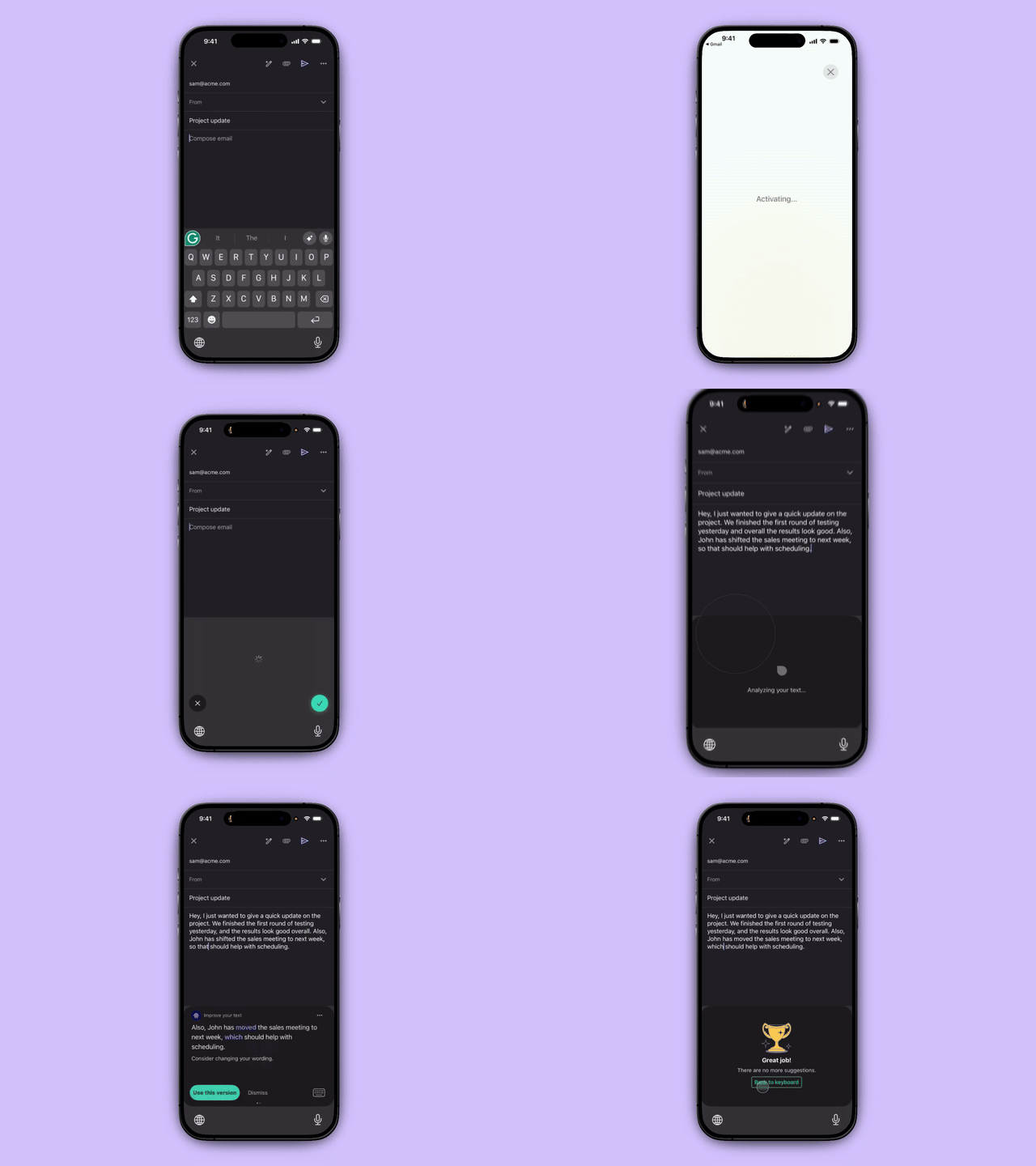
Speech-to-text is built directly into the Grammarly Keyboard. Tap the mic icon, speak naturally, and Grammarly returns clean, send-ready text—right in the app you’re using.
Grammarly’s speech-to-text handles a wide range of languages, accents, and speaking cadences. Instead of producing a raw transcript, Grammarly cuts filler words, removes spots where you corrected yourself verbally, and fixes grammar, all while preserving your tone and intent.
If you want to take your dictated text further, Grammarly’s AI assistant is available in the same keyboard. You can switch between speaking and typing at any point, or edit your dictated text with the same Grammarly Keyboard across all your apps.
Built for wherever and however you use your phone
Grammarly’s speech-to-text is for anyone who writes a lot on mobile—knowledge workers drafting between meetings, students capturing ideas mid-walk, or anyone tired of fighting a tiny keyboard.
Grammarly’s mic is designed to cut background noise while also keeping you in control of what is recorded. The mic only activates when you tap it. While it’s on, you’ll see a clear signal in the keyboard, plus the iOS orange indicator light at the top of your screen. After your audio is processed into text, it’s deleted. It isn’t stored, linked to your account, or used to train any models. All that’s left is your polished message, ready to send.
Get started
Speech-to-text lives inside the Grammarly Keyboard. Once it’s set as your default keyboard, the mic is available in any app.
- Download and install Grammarly for iOS: If you haven’t done so already, download the Grammarly Keyboard from the App Store. Setup takes under a minute.
- Set Grammarly as your keyboard: Go to Settings → General → Keyboard → Keyboards → Add New Keyboard, then select Grammarly. Enable full access when prompted. This allows the keyboard to work across all your apps.
- Tap the mic and start speaking: Open any app, tap into a text field, and you’ll see the Grammarly Keyboard. Hit the mic icon, say what you want to write, then stop. Clean, ready-to-send text appears right where your cursor is.