Key takeaways
- The best AI assistants help you write, plan, research, and automate routine tasks, making everyday work faster and easier with less manual effort.
- AI assistants come in many forms, including helpers for writing and research, meeting and scheduling, and various productivity workflows.
- The top AI assistants are accurate, easy to use, and integrate smoothly into the apps and tools you already rely on, rather than adding extra steps or complexity.
- Choosing the right AI assistant depends on your main tasks, the apps and tools you use daily, and whether you want proactive or on-demand help.
- Comparing AI assistants by relevance to your task, integrations, and reliability helps you identify the option that best supports your needs.
AI assistants are now built into many of the tools people use daily, from writing platforms and browsers to apps that help manage tasks and information. As these assistants become more specialized, people are increasingly seeking options that match the specific work they want to streamline, instead of relying on a single, one-size-fits-all tool.
In this guide, you’ll discover what sets the best AI assistants apart, how today’s leading tools compare, and how to evaluate them based on your needs.
Table of contents
- What is an AI assistant?
- What to look for in an AI assistant
- Best AI assistants at a glance
- Top 10 AI assistants
- How to choose the best AI assistant for your needs
- How to use AI assistants effectively and responsibly
- Best AI assistants FAQs
What is an AI assistant?
An AI assistant is a digital tool that uses artificial intelligence to understand your requests, answer questions, and help with tasks like writing, planning, or research. Unlike traditional software that follows set steps or menus, AI assistants can understand everyday language and respond based on context.
An AI assistant typically requires you to ask it to complete a task in a simple typed or spoken request, often called a prompt. AI assistants use natural language processing (NLP) technology to figure out what you’re asking, including your intent and tone. They generate responses using large language models (LLMs) trained on vast amounts of text with machine learning. This helps them recognize language patterns and give answers that sound natural and relevant.
In practice, you might prompt an AI assistant to summarize a long document, refine the tone of an email, draft ideas for a project outline, or help prioritize tasks.
For a closer look at AI assistants and how they work, check out our in-depth guide to AI assistants.
What to look for in an AI assistant
AI assistants aren’t all the same. Before you compare specific tools, it’s helpful to know the key qualities that show whether an assistant will meet your needs.
- Capabilities: Does the AI assistant excel at the tasks you most want help with, such as writing, scheduling, research, or coding? If meetings dominate your day, an assistant that reliably transcribes and summarizes will be more useful than one built mainly for drafting text.
- Ease of use: Can it understand plain-language prompts without technical phrasing or setup? AI assistants that respond well to requests like “summarize this” or “make this sound friendlier” are easier to use consistently.
- Accuracy and reliability: Are responses clear, consistent, and trustworthy enough to act on? AI assistants don’t always get things right, and inaccurate information can lead to mistakes if it’s used without review. For research or fact-based tasks, assistants that provide citations or references make verification much easier.
- Integrations: Does it work inside the apps and workflows you already use? If most of your work happens in email and documents, an AI assistant that appears directly in those tools will save more time than a standalone app.
- Context awareness: Can it handle longer conversations or full documents without losing track? An assistant’s context window refers to how much text or conversation it can keep in mind at once. Assistants with larger context windows can revise an entire draft or follow multi-step instructions, rather than improving one sentence at a time.
- Proactivity: Does the AI assistant wait for prompts, does it offer timely help as you work, or a mix of both? Proactive assistants can surface writing suggestions or follow-ups without requiring you to stop and ask.
- Privacy: Are data handling, storage, and protection practices clear and appropriate for how you’ll use the AI assistant? Teams handling sensitive information should select assistants with transparent privacy policies and robust data protection.
- Customization: Can you specify the tone and writing style or source material to fit your request? AI assistants that let you operate this way tend to produce more predictable results.
- Cost: Does the pricing align with your usage and required features? Free tiers work well for lighter use, while frequent users may need paid plans for higher limits or deeper integrations.
Top 10 AI assistants
Each top AI assistant specializes in specific tasks, such as writing, research, scheduling, or meetings. Below is a quick snapshot of what each AI assistant is best for, along with key considerations to keep in mind.
| Best AI Assistants at a Glance | ||
| Tool | Best For | What to Consider |
| Go | Writing, tone, clarity across apps, and proactive assistance | Optimized for writing workflows, integrates with most tools, apps, and websites; provides proactive, contextually aware support |
| ChatGPT | Writing, brainstorming, and general tasks | Helpful for drafting and ideation, but requires verification for factual accuracy |
| Claude AI | Long-form drafting and revision with structured reasoning | Strong context handling; fewer native integrations |
| Microsoft Copilot | Integrates with Word, Excel, Outlook, and Teams workflows | Most effective within Microsoft 365 |
| Google Gemini | Integrates with Gmail, Docs, Sheets, and Android tasks | Limited outside the Google ecosystem |
| Perplexity AI | Research with cited sources | Less suitable for long-form writing |
| Motion | Automatic meeting scheduling and task planning | Focused on time management, not content |
| Reclaim.ai | Time-blocking, routines, and task alignment | Focused on calendar and task alignment, not broader AI workflows |
| Otter.ai | Meeting notes and summaries | Primarily useful for meetings |
| GitHub Copilot | Code completion and debugging | Designed only for developer workflows |
1. Go
What is it? Go is an AI assistant built specifically for writing and communication workflows. Whether you’re drafting an email, refining a report, or brainstorming ideas, Go appears directly in the tools you already use, so you don’t need to switch contexts, manually describe your task, or spend time providing background info.
Best for: Proactive, in-flow writing help that feels timely and relevant, reducing friction and keeping you focused on the work itself.
Key features:
- Built directly into your workflow and works proactively, rather than waiting for you to prompt it.
- Helps you draft content in your voice, improve clarity, refine messaging for your audience, or generate ideas.
- Integrates with your most important apps to pull in relevant information, so it has the context it needs to provide useful assistance.
Integration: Operates in 100+ apps through Chrome and Edge extensions, supporting email, documents, messaging tools, and browser-based workflows.
Limitations: Not designed for coding or multi-step analytical queries.
Pricing: A free tier is available; advanced features are included in Grammarly Pro and Enterprise.
Why choose it? Go is ideal if you want an AI assistant built into your workflow that proactively understands what you’re working on and surfaces relevant suggestions at the right moment.
Here’s what Go looks like in action:
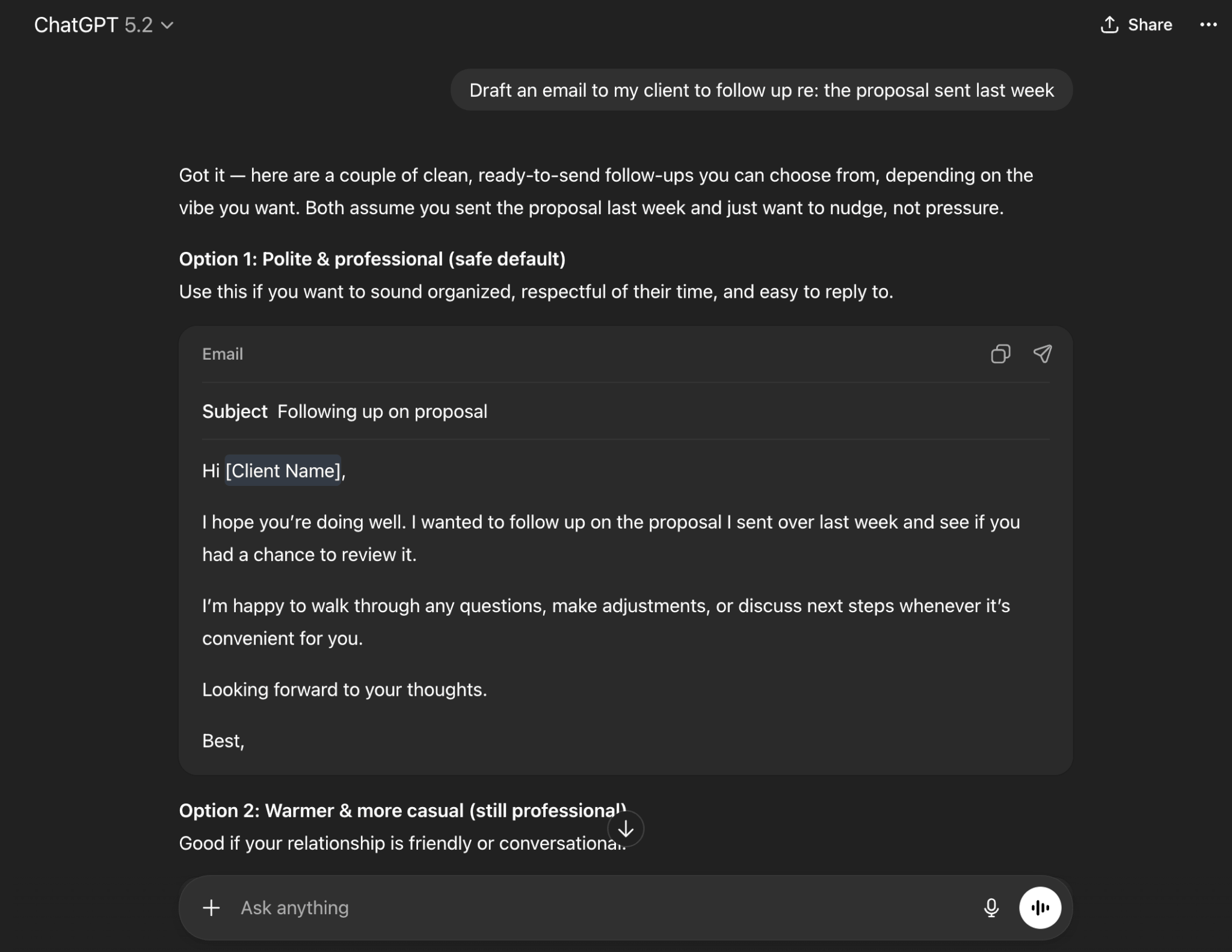
2. ChatGPT (OpenAI)
What is it? ChatGPT is a conversational AI assistant used for brainstorming, writing, rewriting, and coding support.
Best for: General-purpose drafting, ideation, and problem-solving.
Key features:
- Handles a wide range of natural-language prompts, from short questions to detailed instructions.
- Generates creative or technical text on demand.
- Offers plugins and extensions for extended functionality.
Integration: Works on web, mobile, and desktop apps, and through third-party integrations that extend capabilities to browsers and tools.
Limitations: Can generate incorrect or unverified information that often needs fact-checking; lacks context switching, requiring manual copying and pasting of information across conversations or windows.
Pricing: Free tier available; paid plans unlock faster, more advanced models.
Why choose it? ChatGPT may be a good fit if you want a versatile assistant that adapts well to various writing and ideation tasks.
Here’s what ChatGPT looks like in action:
3. Claude AI (Anthropic)
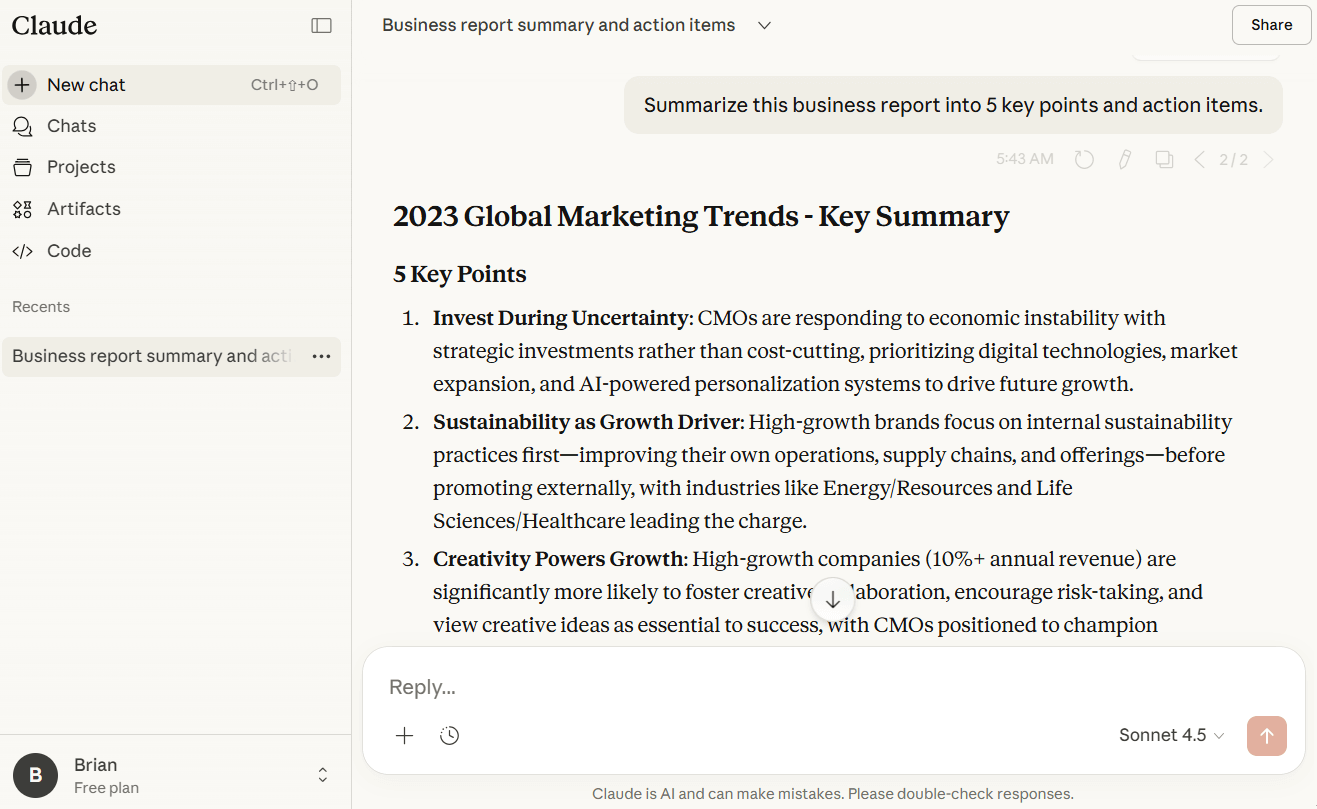
What is it? Claude AI is an assistant designed to work with large amounts of text at once and produce careful, controlled output.
Best for: Long-form drafting and revision, document analysis, and working through complex material step by step across a large input.
Key features:
- Handles long documents and multi-step reasoning across sections or ideas.
- Rewriting, summarizing, and structured editing.
- Offers tone control.
Integration: Accessible via desktop and mobile apps, web interface, and API; often used in workflows where long documents or complex reasoning matter.
Limitations: May be slower with very large or complex requests; limited context switching across tasks or projects requires users to manually copy and paste information between prompts, conversations, or windows.
Pricing: Free tier available; paid plans offer extended context and performance.
Why choose it? When document length, maintaining a consistent tone, or advanced reasoning are your priorities.
Here’s what Claude AI looks like in action:
4. Microsoft Copilot
What is it? Copilot is an assistant embedded in Microsoft Word, Excel, Outlook, and Teams to accelerate writing, analysis, and communication.
Best for: Productivity inside Microsoft 365
Key features:
- Drafts documents and summarizes email threads.
- Analyzes spreadsheets and explains formulas.
- Provides meeting recaps and action items in Teams.
Integration: Deep integration with the Microsoft ecosystem makes it most effective for users already working in Office tools.
Limitations: Limited usefulness outside Microsoft 365.
Pricing: Included in some Microsoft plans; additional licensing required for business tiers.
Why choose it? If your organization already runs on Microsoft 365 and you want automation directly inside core tools.
Here’s what Copilot looks like in action:
5. Google Gemini
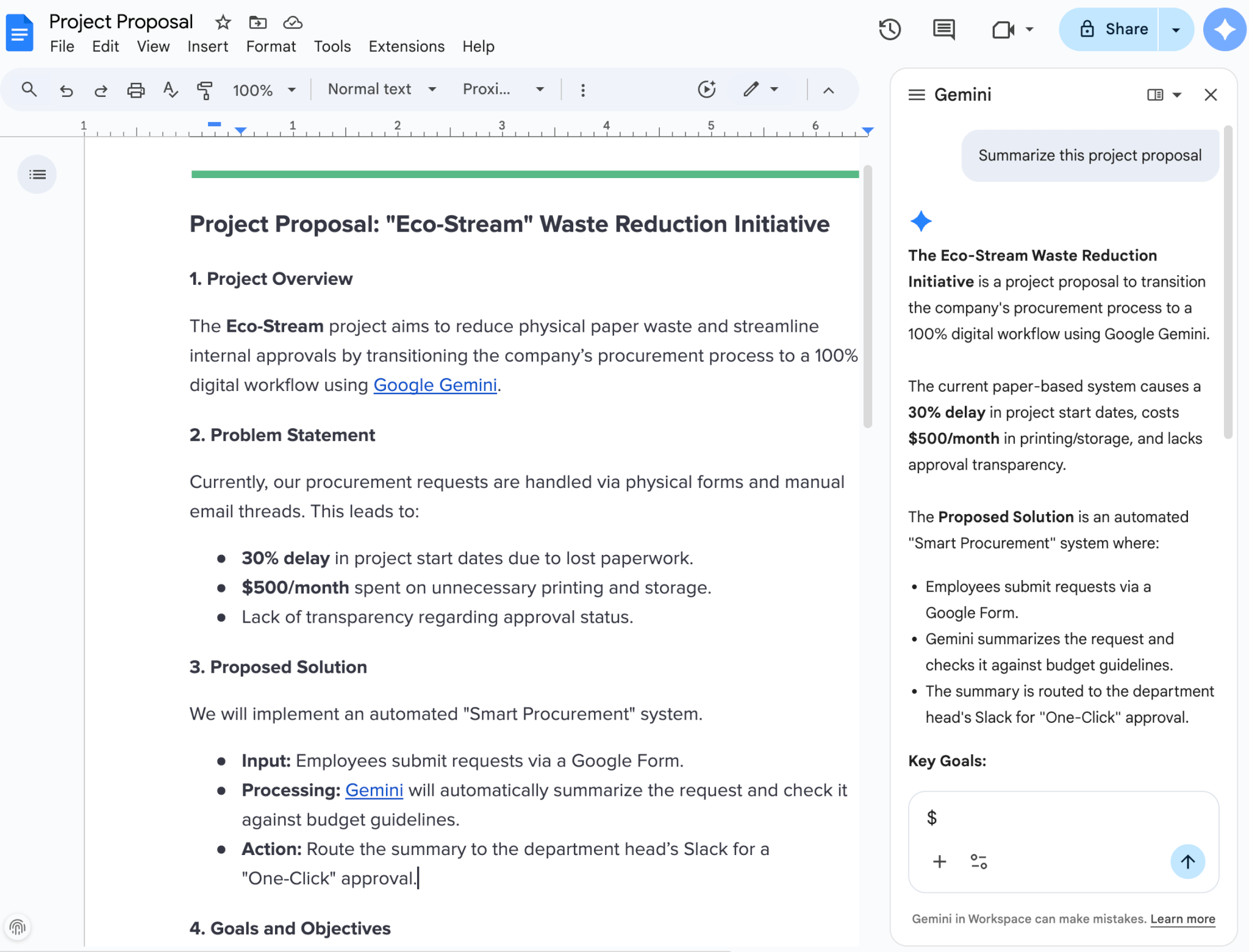
What is it? Gemini is Google’s AI assistant embedded in Gmail, Docs, and Sheets, and is also supported across mobile experiences.
Best for: Google Workspace and Android users
Key features:
- Helps draft, summarize, and refine text in Gmail and Docs.
- Offers search-informed responses.
- Mobile capabilities for on-the-go tasks.
Integration: Native to Google Workspace and Android, making it highly convenient for those ecosystems.
Limitations: Limited functionality outside Google apps.
Pricing: Free tier available; advanced tiers unlock more functionality.
Why choose it? When you work heavily in Gmail, Docs, or other Google tools.
Here’s what Gemini looks like in action:
6. Perplexity AI
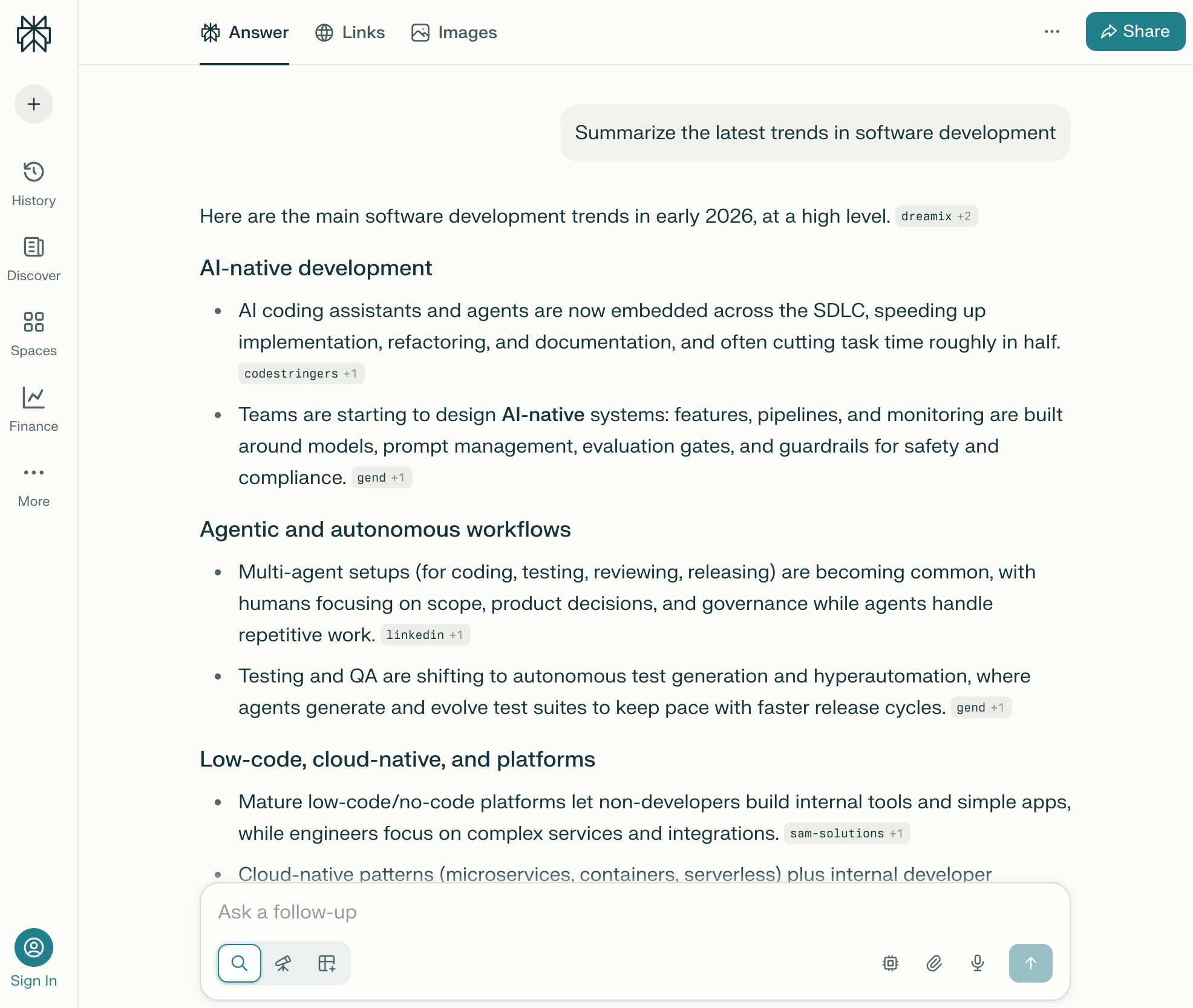
What is it? Perplexity is a retrieval-based AI assistant that provides source-backed answers using live web data.
Best for: Fast, reliable research.
Key features:
- Generates citation-backed responses.
- Fact-checking and answering research-heavy questions.
- Handles follow-up queries naturally.
Integration: Primarily browser-based; can be used alongside writing and research tools.
Limitations: Not ideal for long-form drafting or creative writing.
Pricing: Free tier available; paid version offers advanced models and features.
Why choose it? When information accuracy and source transparency are essential.
Here’s what Perplexity looks like in action:
7. Motion
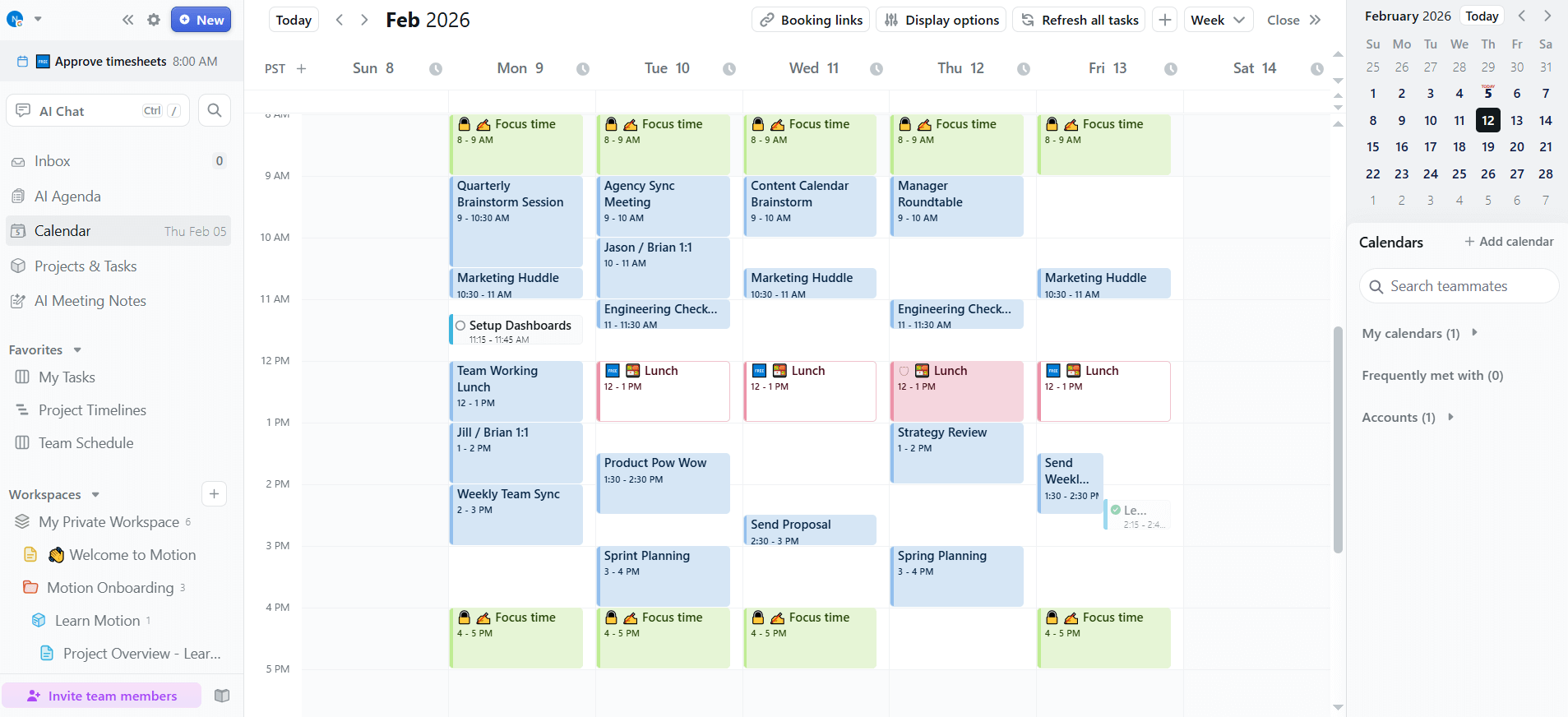
What is it? Motion is an AI-powered calendar and task-planning assistant that automatically schedules tasks and meetings, dynamically adjusting your calendar as things change.
Best for: Automated scheduling and task management.
Key features:
- Automatically reorganizes tasks and meetings based on priority and deadlines.
- Adjusts your schedule in real time when meetings are added or moved.
- Protects deep work time while reducing scheduling conflicts.
- Supports deadline forecasting and project planning.
Integration: Syncs with Google Calendar and Outlook; works alongside task managers.
Limitations: Not suited for writing or research workflows.
Pricing: Paid plans only.
Why choose it? When you want an AI assistant that actively manages your schedule rather than just tracking tasks.
Here’s what Motion looks like in action:
8. Reclaim.ai
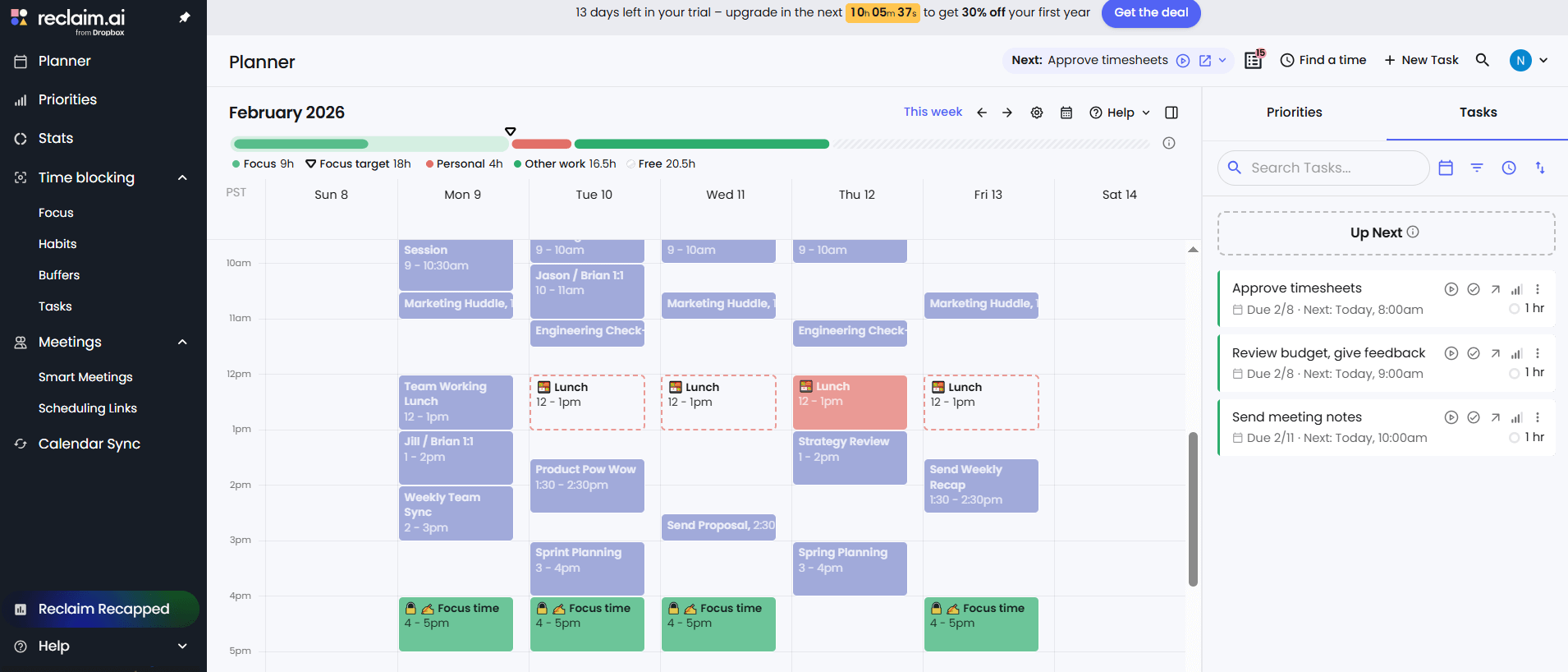
What is it? Reclaim.ai is a calendar automation assistant that prioritizes tasks and habits.
Best for: Smart time-blocking, routines, and task alignment.
Key features:
- Auto-schedules recurring routines.
- Syncs tasks across apps.
- Adjusts schedules dynamically based on workload.
Integration: Works with major calendar providers and task apps.
Limitations: Focused solely on scheduling; not a multipurpose assistant.
Pricing: Free and paid tiers available.
Why choose it? When you want dynamic, flexible time-blocking without manual effort.
Here’s what Reclaim.ai looks like in action:
9. Otter.ai
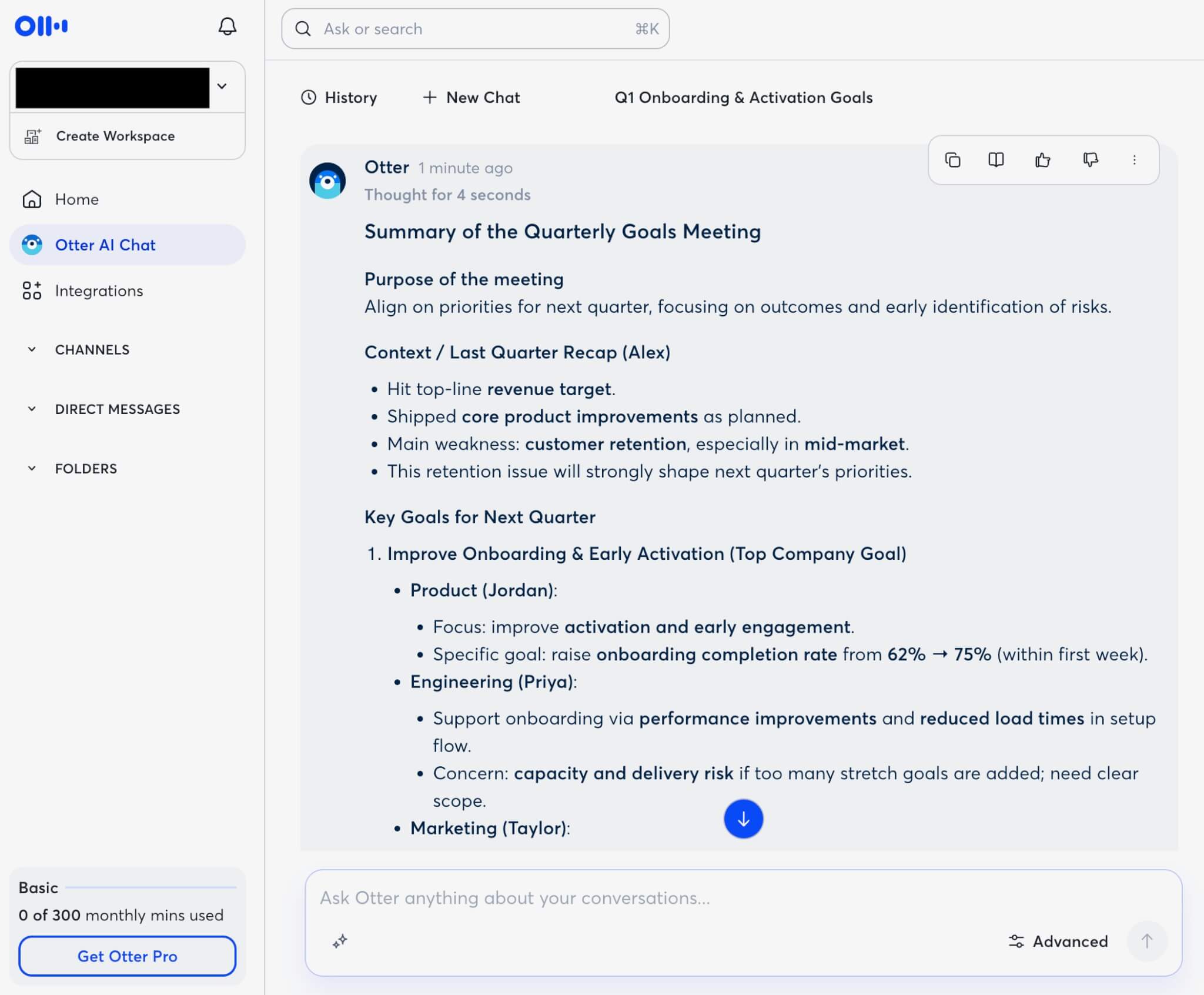
What is it? Otter.ai is an AI meeting assistant that captures live transcripts and key takeaways.
Best for: Meeting transcription, summaries, and action items.
Key features:
- Real-time transcription with speaker identification.
- Generates summaries and action items.
- Supports popular videoconferencing tools.
Integration: Works with Zoom, Google Meet, and Teams; exports to docs and workflows.
Limitations: Limited usefulness outside meetings.
Pricing: Free tier available; paid business plans unlock more features.
Why choose it? When you spend much of your day in meetings and need reliable transcription.
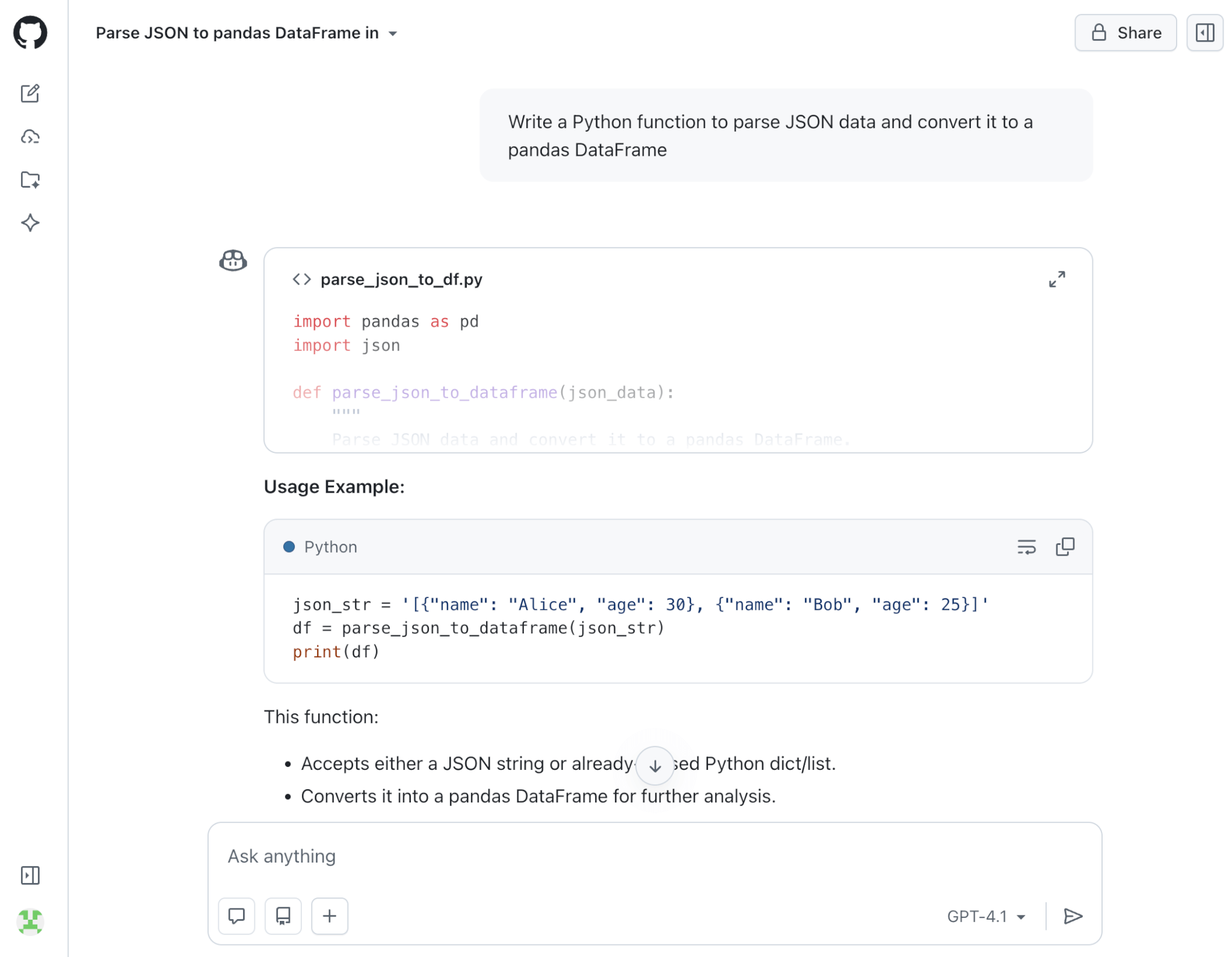
Here’s what Otter.ai looks like in action:
10. GitHub Copilot
What is it? GitHub Copilot is an AI assistant that suggests code, explains errors, and accelerates development workflows.
Best for: Coding assistance inside developer tools.
Key features:
- Generates code completions and entire functions.
- Explains bugs and unfamiliar code.
- Works directly inside IDEs like VS Code.
Integration: Deep GitHub and IDE integration creates a seamless developer environment.
Limitations: Only valuable for programming-related tasks.
Pricing: Paid individual and enterprise plans.
Why choose it? When you want an AI assistant embedded directly in your coding workflow.
Here’s what GitHub Copilot looks like in action:
How to choose the best AI assistant for your needs
Identifying the right AI assistant is less about finding a universal solution and more about fitting the tool to your specific needs, tools, and working style. Focus on selecting an assistant that complements your daily routine, rather than looking for a one-size-fits-all option.
Step 1. Define the primary task you want help with
Start by identifying the main job you want an AI assistant to handle. Some assistants are built for writing and communication, while others focus on scheduling, research, meetings, or coding.
If your primary need is to capture meeting notes and action items, an assistant designed for transcription will be more helpful than one optimized for drafting text. If writing and revising are central to your work, a writing-focused assistant will deliver more consistent value.
Step 2. Look at the tools and platforms you use most
AI assistants are most effective when they work inside the tools you already rely on. Before choosing one, consider where you spend most of your time during the day, such as email, documents, browsers, calendars, or messaging apps.
An assistant that appears directly inside those environments will feel more seamless than one that requires switching between apps or copying content back and forth.
Step 3. Decide whether you want proactive or reactive help
Some AI assistants wait for you to type a prompt, while others offer suggestions automatically as you work. Neither approach is better in every situation, but the difference matters.
If you prefer hands-on control, a reactive assistant that responds only when asked may feel more comfortable. If you want support that surfaces ideas, edits, or follow-ups while you work, a more proactive assistant can help you stay focused without interrupting your flow.
Step 4. Evaluate integration depth
Beyond basic access, consider how deeply an assistant integrates with your workflow. Some tools simply generate text, while others can pull context from documents, calendars, or conversations you’re already working with.
If you work across long documents or multi-step projects, assistants with strong context awareness and tighter integrations will produce more relevant, consistent results.
Step 5. Consider privacy needs
Finally, consider how and where you’ll use the assistant. Personal tasks and workplace tasks can have very different privacy requirements.
If you’re working with sensitive information, it’s important to understand how an assistant handles data, what gets stored, and what controls are available. Clear privacy practices and transparency matter just as much as features.
Choosing an AI assistant becomes much easier when you focus on fit rather than hype. By matching an assistant’s strengths to your tasks, tools, and preferences, you can find one that genuinely supports how you work instead of forcing you to adapt to it.
Learn more about what goes into building AI assistants with our step-by-step guide on how to create your own AI assistant.
How to use AI assistants effectively and responsibly
The best AI assistants are most effective when they fit naturally into how you work. Rather than relying on features alone, using them thoughtfully and consistently helps ensure they actually improve your day-to-day tasks.
- Weave AI assistants into your daily workflows: They become most valuable when they’re used consistently, not just for occasional tasks. Over time, the right AI assistant can function as a natural extension of everyday habits.
- Combine AI assistants to match different needs: Many people use multiple tools because each one excels at different tasks. Using complementary assistants allows you to build a workflow where each tool plays to its strengths.
- Understand AI assistants’ limitations: AI assistants can generate incorrect, incomplete, or outdated information, and they may sound confident even when they’re wrong. Reviewing outputs carefully is especially important for research, schoolwork, or decisions that depend on accuracy.
- Use AI assistants with transparency and good judgment: Responsible use means following workplace or educational policies, being transparent about when AI is used, and relying on your own judgment and original work. If AI use is permitted, students should cite or acknowledge assistance when required and avoid submitting AI-generated work as their own.
When you use AI assistants this way, they can make your workflow smoother without making things more complicated. The main thing is to match the right assistant to the right task and use them with clear goals in mind.
Best AI assistants FAQs
What is the best AI assistant?
There’s no single best AI assistant for everyone. The right choice depends on what you want help with, the tools you already use, and how much automation you prefer. Some assistants are better for writing, while others focus on scheduling, research, meetings, or coding.
What is the best AI writing assistant?
The best AI writing assistants help with drafting, revising, summarizing, and adjusting tone. Many writers use one assistant to generate ideas or long drafts, and another that works directly within documents or messages to refine clarity and style as they write.
Go is an AI assistant designed to support all stages of the writing process and broader daily tasks and workflows. It’s powered by Grammarly’s writing expertise, with models developed and supported by professional linguists. Built directly into the tools you already use, Go helps you draft content in your voice, refine messaging for clarity and tone, and generate ideas, and constantly looks for opportunities to make suggestions when they’re most useful to you. Because Go understands what you’re working on, it can proactively surface relevant suggestions at the right moment, helping you write more effectively while staying focused on your work.
Which AI assistant is best for work and productivity?
Productivity-focused AI assistants support tasks like scheduling, time blocking, meeting summaries, and workflow organization. The best option depends on how you manage your workday and which apps or platforms you rely on most.
Are free AI assistants worth using?
Yes. Many AI assistants offer free versions that cover core tasks such as writing, summarizing, or basic research. Paid plans typically unlock higher usage limits, faster performance, or deeper integrations with work tools.
What should I look for in an AI assistant?
Start by identifying the main task you want help with, such as writing, scheduling, research, meetings, or coding. Then look for an assistant that is easy to use, integrates with your existing tools, delivers reliable results, and has clear privacy practices.
Can one AI assistant replace all the others?
Usually not. Most AI assistants specialize in different areas, so many people use two or three tools together. For example, you might use one assistant for writing, another for meetings, and another for task scheduling, creating a combined setup that best fits your workflow.